Read NinjaTrader’s calendar
The rollover dates come from the selected instrument’s NinjaTrader configuration. Replay Desk does not guess a switch date from live volume.
Download multiple days. Follow contract rollovers. Keep your data ready.
Batch-download Market Replay, Tick, Minute and Daily data inside NinjaTrader 8. Prepare data for Playback, historical charts and backtesting, then manage it all in one library.
One-time lifetime license. Market data and exchange fees are separate.
From a week of NQ Market Replay to a historical-data library across futures contracts.
Explore the download and library toolsReview each instrument, date and data request before the download starts.
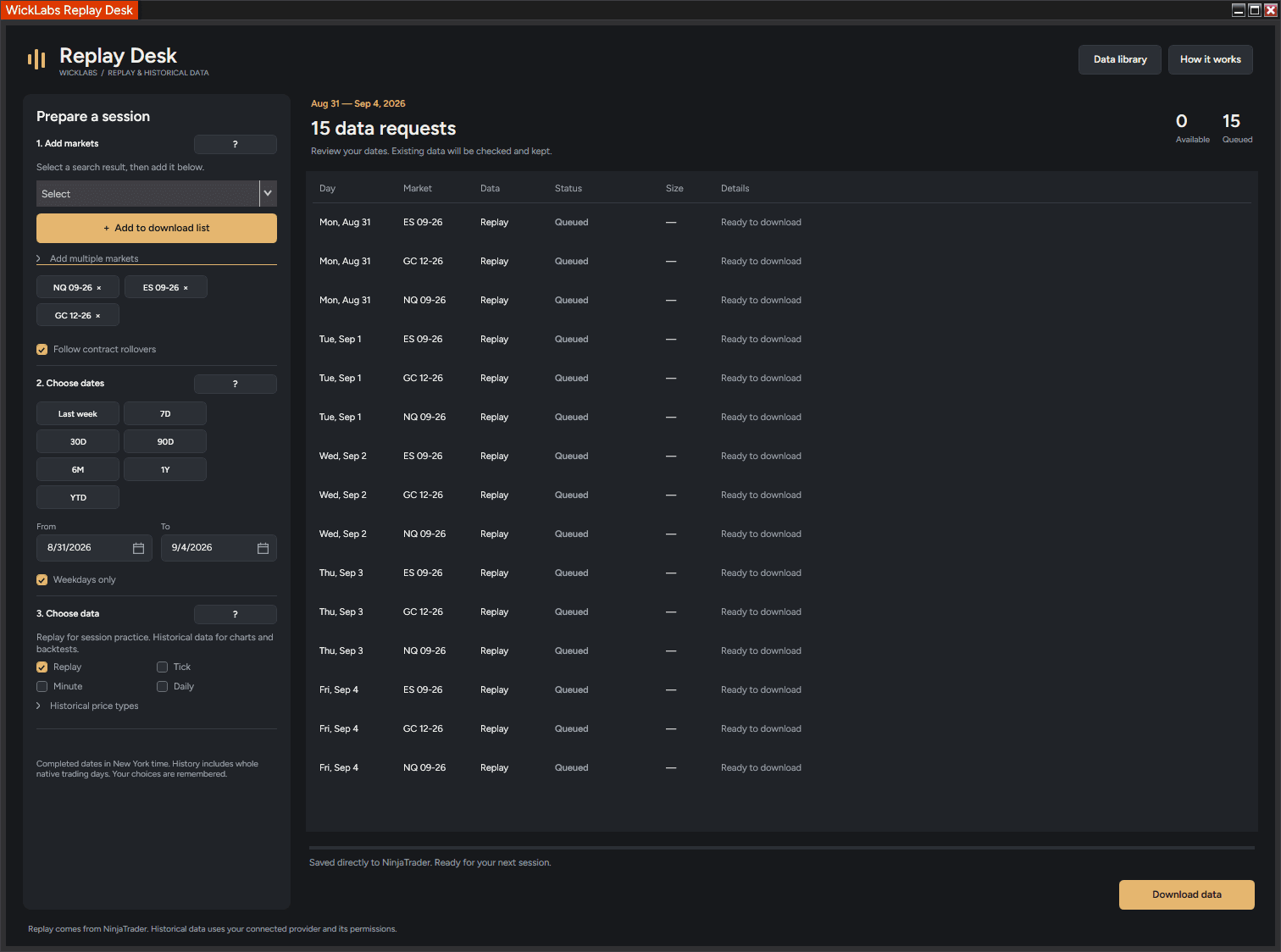
Preparing a week of practice should not mean repeating Get Market Replay Data for every date and instrument. Add your futures markets, choose a date range and let Replay Desk work through the download plan.
The downloaded data stays in NinjaTrader's native Market Replay library, ready for the Playback connection. Use it to revisit sessions, practice trade execution and review how your charts and indicators behaved.
Market Replay availability comes from NinjaTrader's replay service. The utility does not extend the history that service offers.
Choose a period once for every market in your plan.
Select the data types and price series your workflow needs.
Request historical data through your connected NinjaTrader provider. Select Tick, Minute or Daily—or combine them in a plan—and choose the available Last, Bid and Ask series.
Prepare historical tick data for compatible Tick Replay charts and indicators, historical Playback, or tick-based testing. Provider coverage and the way NinjaTrader uses that data still apply.
Load the historical bars you need for chart review and Strategy Analyzer backtests, across supported instruments and dates.
Market Replay and Tick Replay are different. Market Replay is a recording for Playback. Tick Replay is a chart setting that processes historical ticks. Replay Desk downloads the selected data; it does not change chart or strategy settings.
A long download range can cross several futures expiries. Turn on Follow contract rollovers and Replay Desk reads the rollover dates stored in NinjaTrader's instrument settings. It selects the dated contract for each requested day and shows those contracts in your plan.
The rollover dates come from the selected instrument’s NinjaTrader configuration. Replay Desk does not guess a switch date from live volume.
Days before a configured rollover use the preceding contract. The rollover date and following days use the next configured contract.
Check the exact contract shown for every date. Missing or conflicting calendar entries produce a plan error so you can correct the calendar or choose an exact contract.
Select a dated symbol such as NQ 09-26 and turn Follow contract rollovers off. Every requested day then stays on that exact contract.
Rollover selection chooses which contract to request. It does not create a synthetic continuous contract or back-adjust prices. Historical downloads are unmerged and unadjusted.
Expand Add multiple markets below the instrument search. Choose a preset, paste a list or select Import list. These add instruments to the same selected-market list. Review the chips and remove anything you do not need before downloading.
Adding a group changes only your market selection. It keeps your dates and data types, and does not start a download.
Three ways to fill the same download list.
| Preset | Symbols |
|---|---|
| Equity futures | ES, NQ, YM, RTY |
| Micro futures | MES, MNQ, MYM, M2K |
| Energy & metals | CL, NG, GC, SI, HG |
| Micro energy & metals | MCL, MGC, SIL |
| Forex majors | $EURUSD, $GBPUSD, $USDJPY, $AUDUSD, $USDCAD, $USDCHF |
Forex presets are for provider-supported historical data. Market Replay downloads are for supported futures.
Select a ready-made group, then edit the list if needed.
Use one symbol per line, or separate symbols with commas. Root symbols follow the configured futures rollover calendar when rollover selection is enabled.
ES
NQ
GC
Download TXT example
For a spreadsheet export, put a Symbol, Instrument or Market header in the first column. Replay Desk reads that column and ignores additional columns. Without a header, every cell is treated as a symbol.
Symbol
ES
NQ
GC
Download CSV example
Duplicates are removed. Lists support up to 100 unique markets; import files must be smaller than 256 KB. Symbols must exist in your NinjaTrader installation.
Replay Desk checks for native data already on your PC. Completed and verified requests stay completed, so resuming a plan focuses on unfinished work.
Stop download requests a safe stop. Historical requests finish their current day; Replay requests ask NinjaTrader to cancel. Use Resume unfinished after resolving a connection or availability issue.
Read the status for each instrument and day: downloaded, already available, unavailable or unfinished. A missing date stays visible in the results, alongside the work that completed.
Your market and date selections are saved. You can close the Replay Desk window while a download continues; keep NinjaTrader running until the queue is finished.
Filter by instrument, data type and dates. Inspect file counts, covered periods and storage usage, then select the data you want to back up.
Create a verified .wlr backup and open it with the included Windows restore helper. Select what to restore. Matching files are kept; different existing files are not overwritten.
The helper can remove selected native files after checking that a matching verified backup exists. Your backup is kept for a later restore.
For a restore, close NinjaTrader and keep the helper open. The helper writes native data files directly, so it waits until NinjaTrader is closed to avoid changing data that the platform may be using.
Select market data to back up, restore or remove after backup verification.
Tools → Import → NinjaScript Add-On.
Open License in the Replay Desk toolbar.
Paste your own key here. The example field is intentionally empty.
Disconnect Playback before downloading. For Market Replay, turn off Enable market recording for playback. Connect your provider when requesting historical data.
Choose the type of data for your next session.
Choose completed days before today. Dates use New York calendar days. Weekdays only excludes Saturdays and Sundays; turn it off when you need weekends. Plans support up to 100 markets, 10,000 requests and approximately one year per range. A date shortcut selects a range; it does not guarantee the provider has that history.
Check the exact instrument and contract, your provider connection and the source’s historical coverage. Unavailable means no data was returned for that request. Completed requests remain in your library; Resume unfinished lets you retry the remaining work after resolving the cause.
Open Data library → Restore a backup, or launch WickLabsReplayRestore.exe. Select your .wlr file and wait for verification. Select the data to restore, close NinjaTrader and click Restore selected. Reopen NinjaTrader and inspect the restored dates in Playback or your charts.
The library selects whole native files that overlap your chosen dates. It does not trim records inside a file. Some Daily files contain an entire calendar year. Backups contain market data; they do not include workspaces, strategies, account settings or licenses.
Finish the active download queue. Download the latest ZIP from your WickLabs account and import it using Tools → Import → NinjaScript Add-On. Follow the import prompts and restart NinjaTrader if prompted. Your downloaded native data remains on disk.
Need help? Use the app's How it works guide or contact [email protected] with your market, dates and the message shown.
NinjaTrader’s built-in Historical Data downloader already supports instrument lists and date ranges. Its Market Replay dialog handles an instrument and date at a time. Compare these native workflows with Replay Desk, Nexus Data Downloader and AT Market Replay Data Pro in one place.
Compare all NinjaTrader data downloadersOne purchase for the downloader, data library, backup and restore.
Replay Desk Lifetime License
One-time lifetime license. Market data and exchange fees are separate.
Installation & activation guide →Hear from traders who use Replay Desk in their daily workflow.
We ship fast. Here's what's new in Replay Desk.